Getting started
Installation
PC
SilicH2O is installed by extracting the SilicH2O_vX.X.X_win zipfile downloaded from the latest release on GitHub to a new folder on your computer. The following folder structure should stay intact:
calibration/
├─ projects/
configuration/
├─ general_settings.json
├─ glass_settings.json
├─ glass_settings_default.json
├─ interference_settings.json
├─ interference_settings_default.json
examples/
├─ azores.h2o
├─ azores_unmixed.h2o
├─ calibration_materials_KUL.h2o
├─ iceland.h2o
├─ MedardGrove.h2o
SilicH2O/
├─ silicH2O.exe
- .\calibration
.cH2O files and .h2o projects for calibration
- .\configuration
.json files with default settings for spectral processing
- .\examples
.h2o project files with processing examples.
- .\SilicH2O
scripts, dependencies and the executable file.
You start SilicH2O by running silicH2O.exe from the .\silicH2O folder. You can create a shortcut to this file by righ-clicking it and selecting Create shortcut. The shortcut file that is then created can be moved to anywhere on your computer.
Mac
SilicH2O is installed by extracting the files in SilicH2O_vX.X.X_mac.dmg from the latest release on GitHub to any location on your computer. The folder structure is essentially the same as in windows except that there is no SilicH2O folder as everything is bundled in the SilicH2O app file.
Note
Currently, SilicH2O only work on Macs with Apple Silicon (M1 or M2 chips). A version for older, Intel chip based Macs will potentially be released soon.
Warning
MacOS will initially not trust the app downloaded from the internet. It will put all downloaded files in quarantine and the app will not run. To fix this, follow the steps below BEFORE running SilicH2O
Find your terminal app by typing terminal in spotlight and open it. The terminal will open in your home directory, you have to tell it to go to the directory where you extracted all the SilicH2O folders and files by typing:
cd path/to/your/silich2o/folder/
You can use relative paths by starting with ./, i.e. if your SilicH2O files are in a folder called silicH2O located directly in your homefolder you can use ./silicH2O/,
or, if the silicH2O folder is on your desktop ./desktop/silicH2O/
Next lift the quarantine of all files in the app by running the following line in the terminal:
sudo xattr -r -d com.apple.quarantine ./silicH2O.app
The terminal will ask you to type your admin password, which you confirm by pressing the Enter key. This should fix all issues and you can now start SilicH2O by double clicking the downloaded app file. There is no need to repeat these steps if you share the files via a usb drive.
File associations
Currently, SilicH2O only supports text files (e.g. txt or csv) for importing raw spectra. Text files should contain no headers and two have separate columns for Raman shifts (first) and signal intensity (second). Characters separating the columns can be whitespaces (any number) or commas.
Once spectra are imported, they can be stored together in project files with .h2o extensions (File menu → save project as). These files are containers with all spectral data and processing settings and can be exchanged and shared between users, encouraging transparent and reproducible data processing.
Calibration data are stored in .cH2O files, which can be assigned to any project. By default these files are stored in the .\calibration folder at the top level of the SilicH2O folder. When saving a new calibration, calibration spectra are also saved as projects in the .\calibration\projects folder. These projects can later be imported from the Calibration menu to make changes or review the data.
SilicH2O stores temporary files in the .\temp folder, do not delete these while the program is running, they are cleaned up automatically upon exiting SilicH2O.
User interface
Note
Keep an eye on the lower left corner of the infobar! Informational messages are displayed here frequently.
The user interface has six main components:
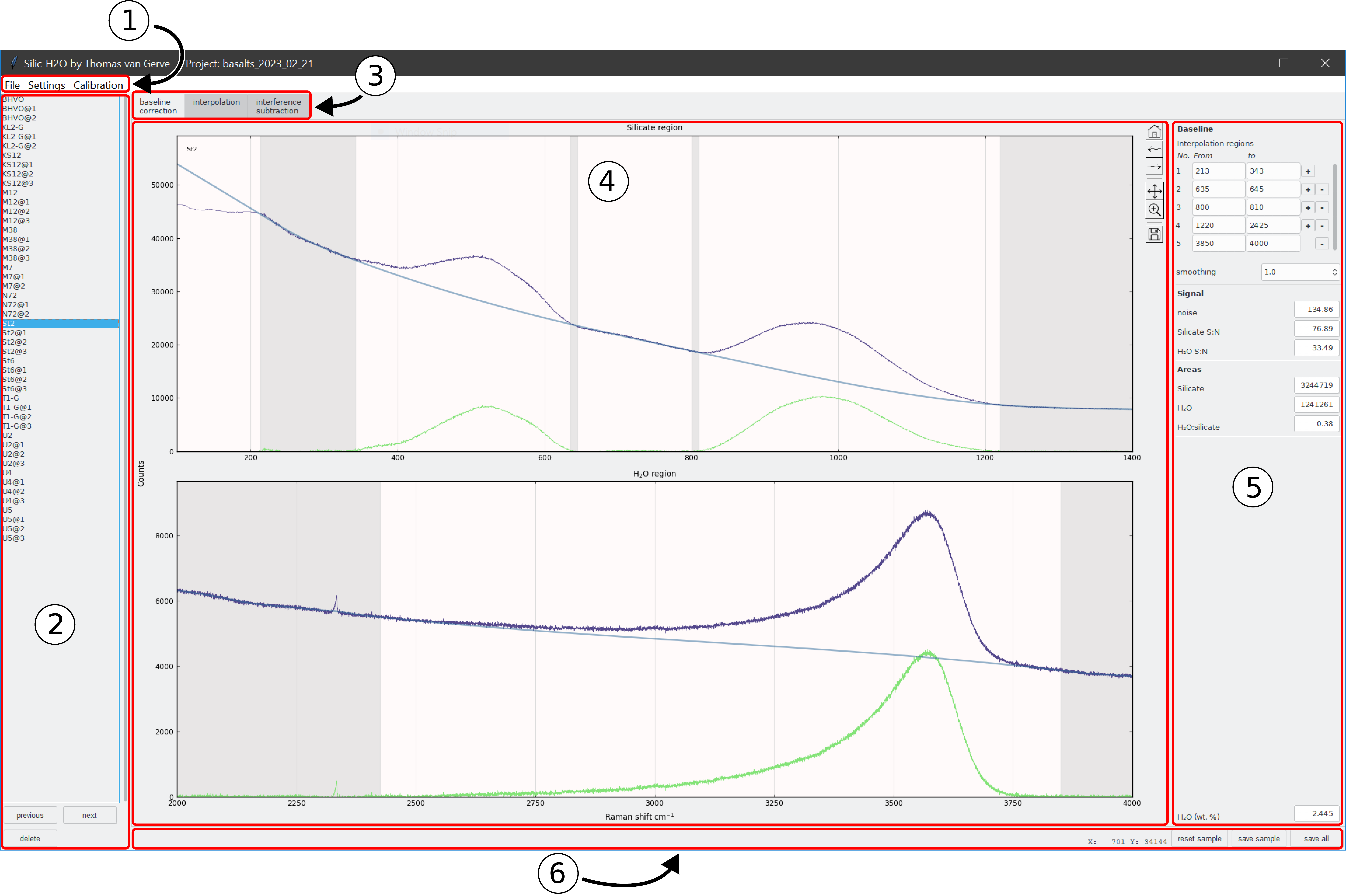
Main user interface of SilicH2O
- 1 - menus
Import and export spectra, change settings and set calibrations.
- 2 - sample navigation
Change samples.
- 3 - tool selection
Select baseline correctin, interpolation or interference correction.
- 4 - interactive plot
Adjust various processing setting by clicking and dragging items in the plot. The plot changes based on the selected tool
- 5 - settings and results
Change processing parameters and get results.
- 6 - info bar
displays information messages and X-Y plot coordinates and has buttons for saving and resetting samples.
sample navigation
Select a sample:
by left-clicking its name
with the
nextandpreviousbuttonswith the ↑ and ↓ keyboard keys
The delete button deletes currently selected samples, where multi-selections are possible with shift + left-click or Ctrl + left-click.
The delete keyboard key can also be used instead.
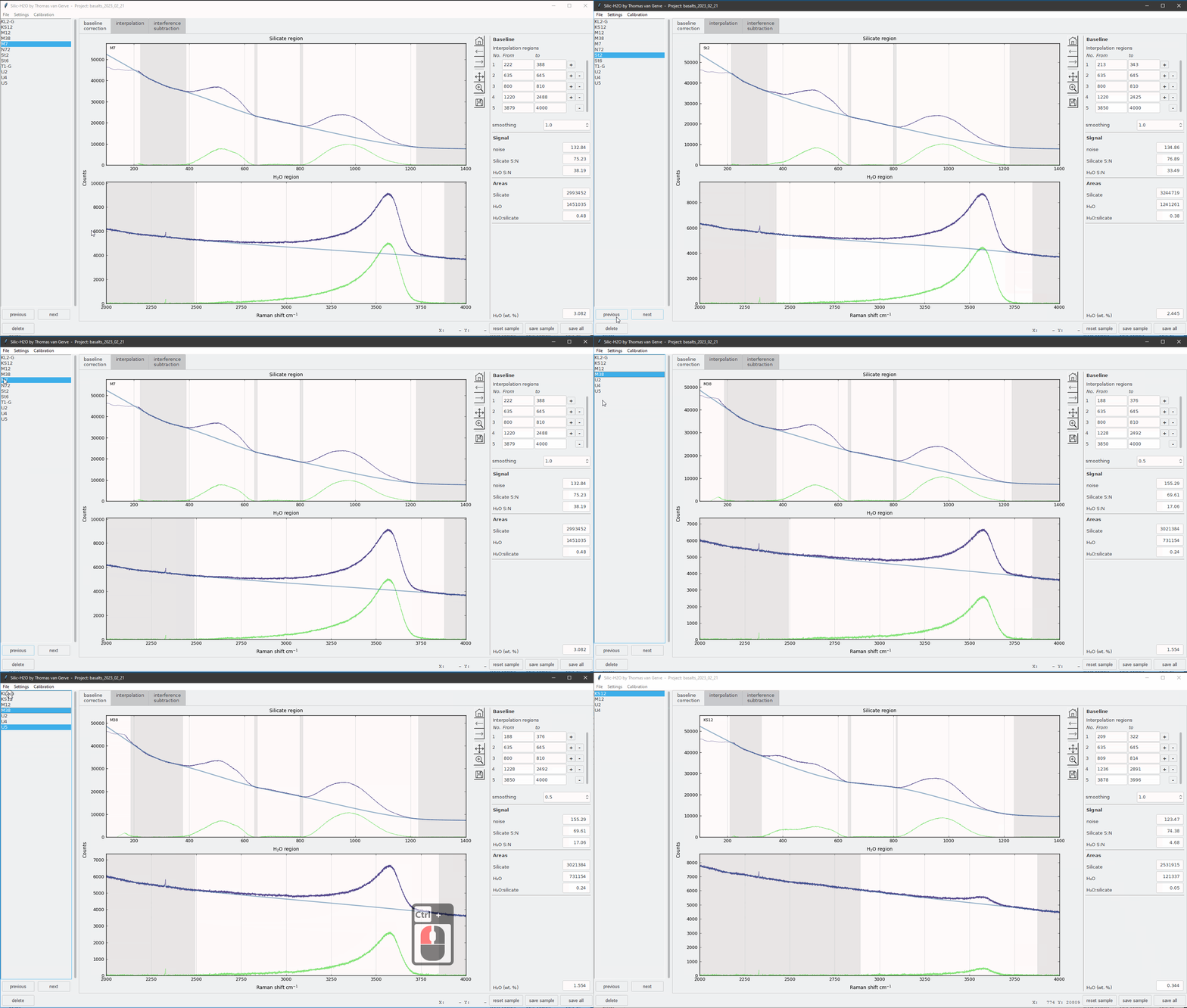
Sample navigation (with keystrokes and mouse clicks displayed).
tool selection
Choose one of three processing tools:
Plots and menus for settings and results change based on which tool is selected.
SilicH2O processes spectra in the following order:
interference subtraction → interpolation → baseline correction
As a consequence, some types of processing are not possible, for example:
interference subtraction on interpolated spectra,
interpolation on baseline corrected spectra.
If this is needed, exporting processed spectra and re-importing them is a suitable workaround.
interactive plot
Plot of the current sample. Plot layout varies with the selected tool and each tool has interactive elements to adjust various parameters. See baseline correction, interpolation and interference subtraction
On the righ-hand side are several tools for plot navigation:

Note
Don’t forget to deselect navigation tools when you no longer want to use them.
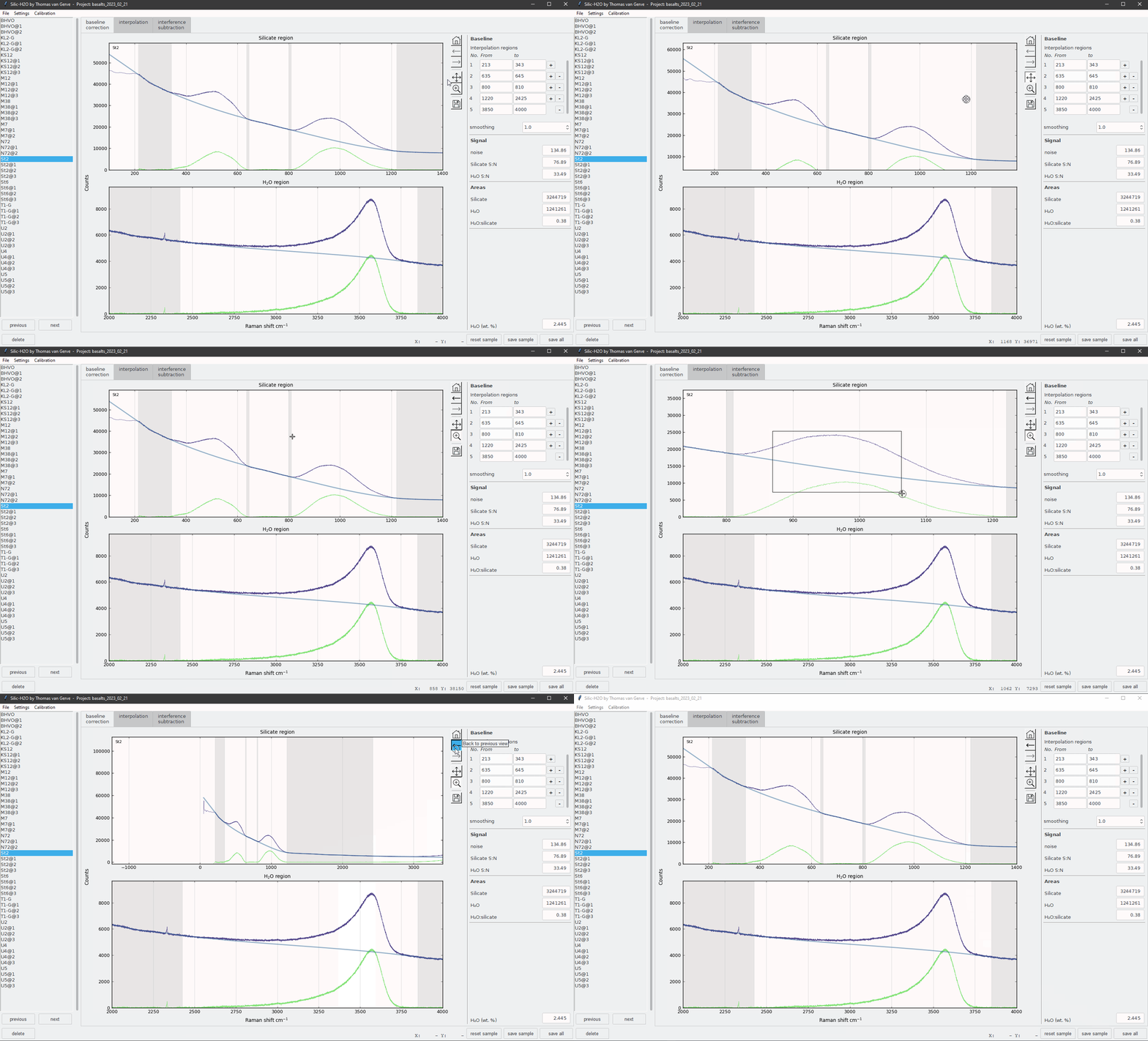
Plot navigation.
settings and results
Shows settings and results of the current tool.
info bar
mouse location X-Y plot coordinates are displayed on the right and information messages on the left. The reset sample button resets the current
sample to the last saved state and save sample and save all save the settings and results of the current sample and all samples respectively .
Note
Saving a sample, or all samples, does not yet save the project. This can only be done via File → save project (as) or with the Ctrl+s keyboard shortcut. If you have not yet saved your data to a project file Ctrl+s functions the same as save all. Keep an eye on the messages in the lower left corner of the info bar, they will tell you how your data have been saved.
Exporting data and results
Processed spectra are exported for single samples via File → export sample to a .csv file with columns for the x-axis and each individual spectrum (e.g. raw, baseline_corrected, baseline). File → export all exports spectra for all samples to the folder chosen by the user
Results (noise, integrated areas, H2O contents etc.) together with processing settings (e.g. baseline smoothing, the use of interpolation and/or interference subtraction) are exported via File → export results to a .csv file. An additional .csv file is generated in the same folder with all baseline interpolation region and interpolation region positions.
Calibration window
The calibration window is where you create new calibrations and link them to projects.

The calibration window
- 1 - menus
Importing and saving calibration data.
- 2 - calibration data
Set reference H2O contents and select which samples to use.
- 3 - calibration curve
Plot with calibration data and curve. Hover over symbols to see sample names.
- 4 - regression statistics
Statistics of the linear regression. Select the tickbox use to link the current calibration to the active project.
Keyboard shortcuts
Key(s) |
action |
|---|---|
|
select previous sample. |
|
select next sample. |
Delete |
delete currently selected samples. |
Ctrl + s |
save settings and results for all samples. If there is a project associated with the current data everything is saved to the project as well. In the calibration window this saves the current calibration. |
Ctrl + z |
reset current sample to its last saved state. |
Ctrl + q |
copy baseline correction settings of the current sample (BIR positions and smoothing). When using the interference subtraction tool this copies settings for the interference. |
Ctrl + w |
paste baseline correction settings. |

